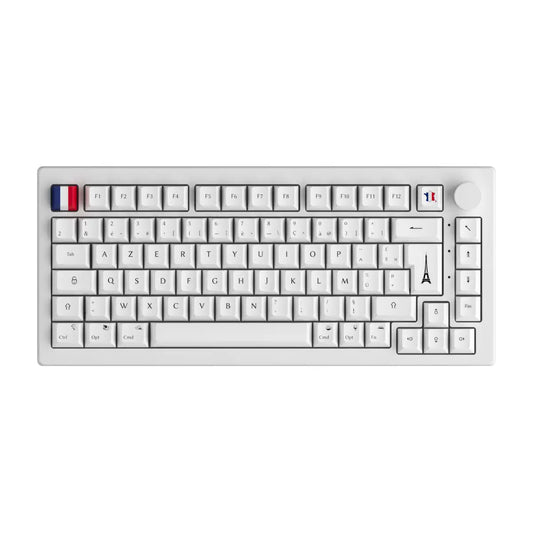
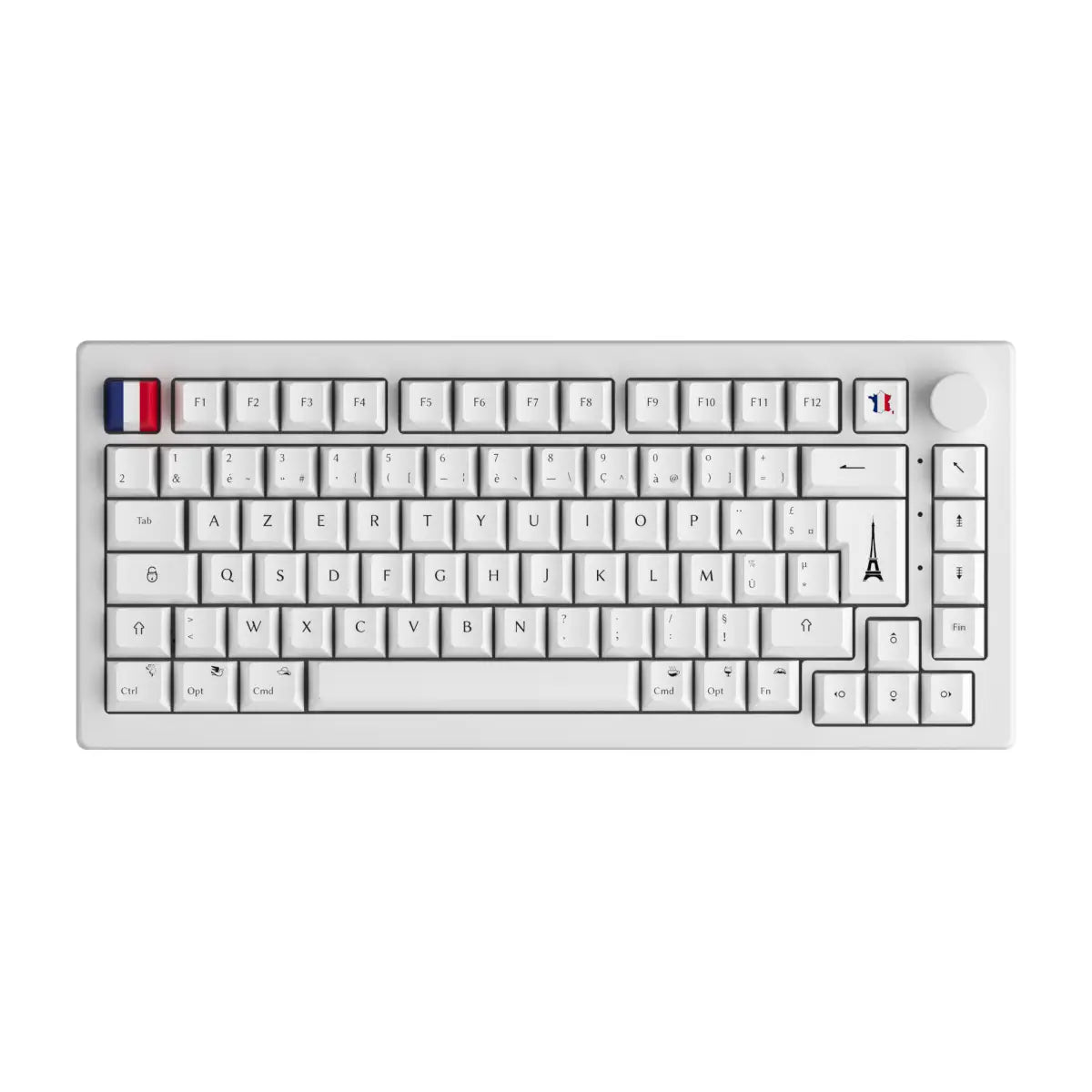

Keyboard switched to QWERTY: the five second fix
You restarted your PC, or you hit the wrong key, and your keyboard suddenly types in QWERTY? Nothing is broken. Windows simply switched to another keyboard layout.
If the AZERTY layout is already installed on the machine, one shortcut is enough:
- Left Alt + Shift: switches from one installed layout to the next, instantly.
- Windows key + Space: cycles through the installed layouts and shows a small picker on screen.
Type aze in any text field to check. If the letters come out as qwe, the AZERTY layout is not installed yet: the full method below takes two minutes.
Useful to know: the ENG or FRA indicator next to the clock, at the bottom right of the screen, tells you which layout is active at any time.
Adding the AZERTY layout on Windows 11, step by step
This method adds AZERTY to your system once and for all. Nothing to download, everything happens in the Windows settings. The screenshots below come from a French interface, but the menus sit in exactly the same place on an English one.
Step 1: open the language settings
Open the Windows Settings (taskbar, Start menu, then Settings). Click the Time & language section in the left menu, then select Language & region.

Step 2: manage the installed languages
Under Preferred languages, find the language block you want to type in, here French (France). Click the three dots on the right, then Language options.

Step 3: reach the keyboard options
You land on the input language settings. Scroll down to the Keyboards section and click Add a keyboard.

Step 4: pick the French AZERTY layout
In the list that opens, select French (Standard, AZERTY). That is the standard layout used in France. If you type on a Belgian or a Swiss board, pick the matching variant in the same list instead.

Step 5: confirm the new layout
Once AZERTY is added, it appears in the list of installed keyboards. It works right away, no restart needed: press Left Alt + Shift to switch to it.

Step 6: remove the QWERTY layout (optional)
If you never want to land back on QWERTY by accident, remove the layout responsible, usually English (United Kingdom) or English (United States). Click the three dots next to it, then Remove. With a single layout installed, the switching shortcut has nothing left to switch to.

The same on Windows 10
The path is almost identical, only the menu names differ slightly:
- Open Settings, then Time & Language.
- Click Language in the left menu.
- Under Preferred languages, click the language you want, then Options.
- In the Keyboards section, click Add a keyboard and pick the layout you need.
Left Alt + Shift behaves exactly the same way on Windows 10.
Going the other way: from AZERTY back to QWERTY
This is the situation most English speakers actually run into: a French machine, or French Windows, typing A where Q should be. The fix is strictly symmetrical. Follow the same six steps, but at step 4 choose English (United States) or English (United Kingdom) instead of the French entry.
Once both layouts sit side by side, Left Alt + Shift flips between them whenever you want. Gamers who need the WASD cluster usually keep QWERTY installed and switch back to AZERTY for typing.
Why does the keyboard keep switching to QWERTY on its own?
In almost every case the cause is the same: two layouts are installed, and the Left Alt + Shift shortcut gets triggered by accident, often while aiming for Alt + Tab. Windows then swaps layouts silently.
Two ways to end it:
- Remove the extra layout, as in step 6 above. That is the radical fix.
- Disable the shortcut: in Settings, Time & language, Typing, open Advanced keyboard settings, then Input language hot keys. Set the combination to Not assigned.
Frequently asked questions
What is the shortcut to change QWERTY to AZERTY?
Left Alt + Shift switches between the installed layouts. Windows key + Space does the same with an on screen picker. Both only work if the AZERTY layout is already installed on the PC.
My keyboard is on QWERTY and no shortcut works, what now?
That means a single layout is installed, and it is the QWERTY one. Follow the six step method above to add AZERTY, then switch to it.
Does this change the physical keys?
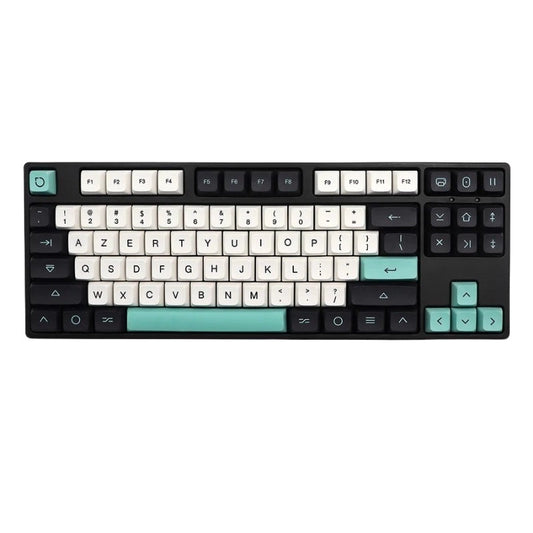
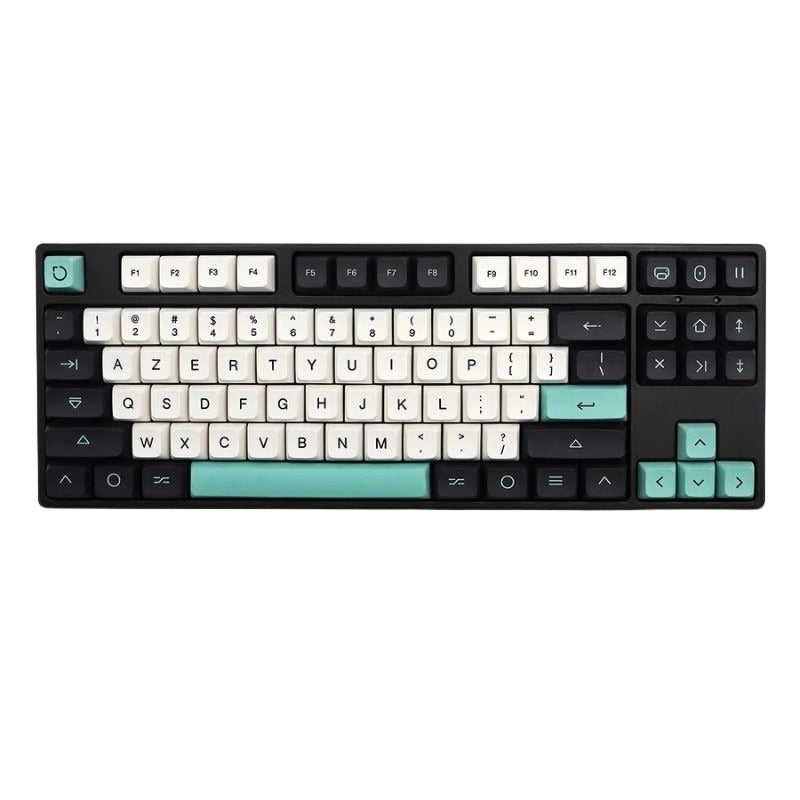
No. You only change the way Windows reads each key. The letters printed on the keycaps do not move. On a physical QWERTY board set to AZERTY, the key marked Q types an A. To make the printing match the layout, you have to change the keycaps themselves.
How do I set AZERTY on the Windows sign in screen?
On the lock screen, click the language indicator at the bottom right and pick the layout you want. To make it permanent, go to Settings, Time & language, Language & region, Administrative language settings, then copy your settings to the welcome screen and system accounts.
Do I need to restart the PC?
No, the new layout is active immediately. A restart only matters if you changed the sign in screen settings.
Your keyboard is back on AZERTY
Remember Left Alt + Shift for the instant fix, and removing the spare layout so the problem stops coming back.

Gamer, creator or everyday typist, a properly set keyboard layout is what keeps you fast. And if you want the printing on your keys to finally match your layout, have a look at our AZERTY keycaps on CustomTonClavier.fr.