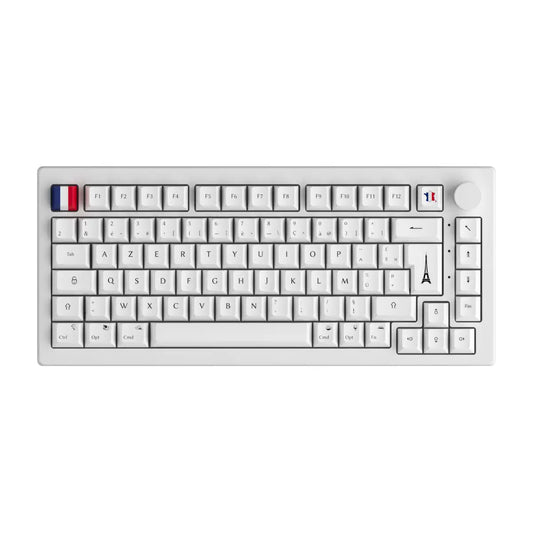
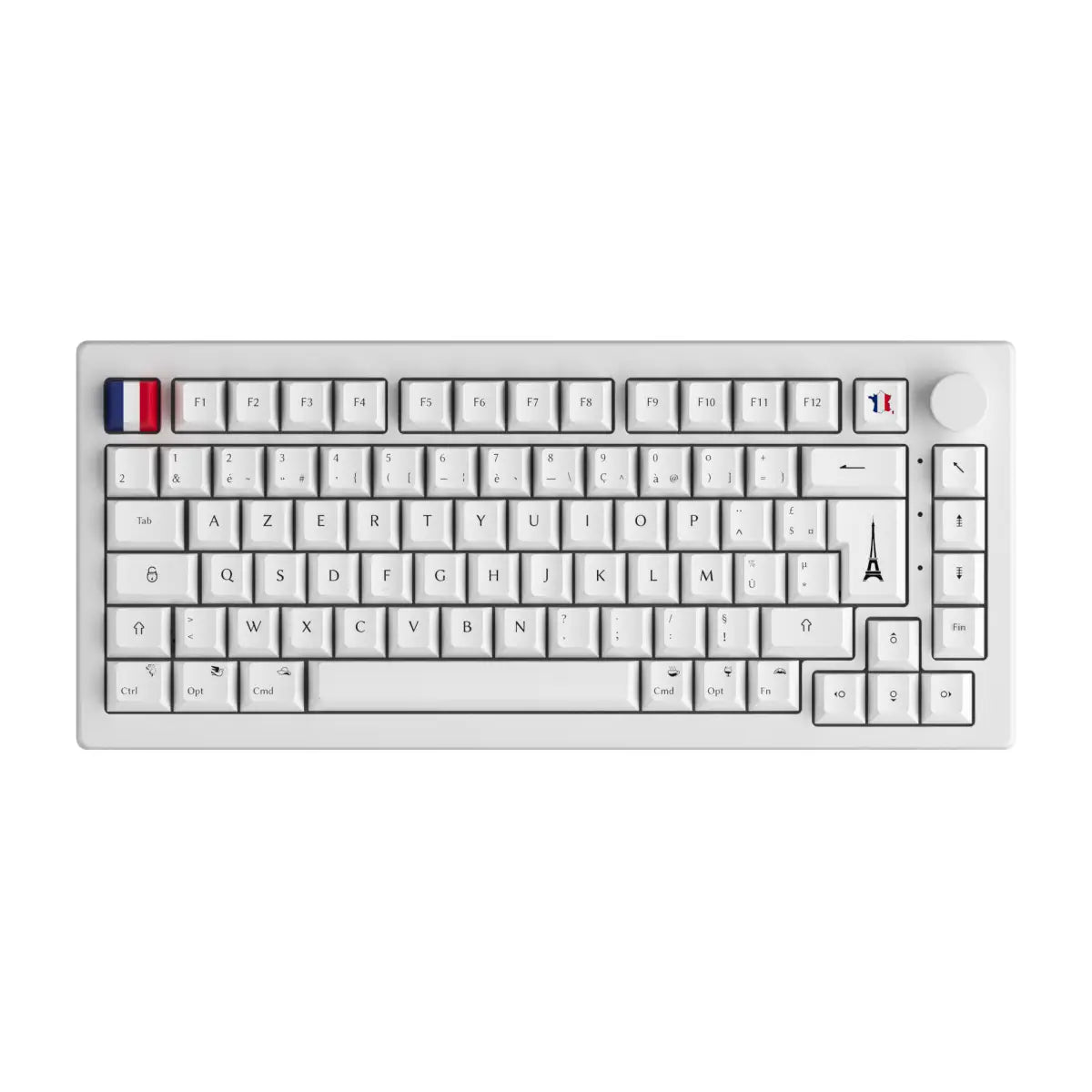

Quotation marks in French (“”) pose a real daily problem: no standard AZERTY keyboard offers them as a direct key, even though French typography requires them. As a result, many people type straight quotation marks " " instead, which immediately betrays sloppy text. This guide gives you the exact shortcuts for Windows, Mac, mobile and Linux, the typo rules to remember (spoiler: the non-breaking space), and remapping solutions for those who type quotes all day.
The main thing to remember
-
Windows:
Alt + 0171for “andAlt + 0187for” (on the numeric keypad). -
Mac:
Option + 7for “andOption + Shift + 7for”. -
Mandatory Non-breaking space between quotes and text:
Ctrl + Shift + Spaceon Word. - Nested quote: “level 1 with “level 2” inside.”
- Remapping: AutoHotkey (Windows) or QMK/VIA firmware to type “ ” in one touch.
French “”, English “” and German “” quotation marks: the differences
Not all quotes are equal. Here is the quick table of the three common families.
| Type | Shape | Unicode code | Usage |
|---|---|---|---|
| French (chevrons) | « » | U+00AB / U+00BB | France, Belgium, French-speaking Switzerland |
| English | " " | U+201C / U+201D | UK, USA, level 2 French |
| German | „ “ | U+201E / U+201C | Germany, Austria |
| Typed | " " | U+0022 | Avoid in neat typography (legacy typewriter) |
French quotation marks are also called chevrons or guillaumets. The name comes from the first name of Guillaume Le Bé, a 16th century Parisian printer who popularized the sign in French printing. In 2019, the AFNOR NF Z71-300 standard formalized for the first time direct access to “ ” on standardized FR keyboards, which shows to what extent their historical absence on AZERTY was a lack.
How to type “ ” on Windows (shortcuts and Alt codes)
Alt + 0171 and Alt + 0187 on the numeric keypad
The most reliable method on Windows remains the Alt code:
-
Alt + 0171gives « (opening quote) -
Alt + 0187gives » (closing quote)
Hold down the Alt key, type the sequence on the number pad to the right of the keyboard (not the numbers at the top, that doesn't work), then release Alt. The quote appears.
Small clarification to clear up a common confusion: Alt + 144 does not give a quotation mark, but the capital letter É. The Alt codes of the French quotation marks are indeed 0171 and 0187 with the leading zero (ANSI table), not the 3-digit codes (OEM table).
On a laptop without a numeric keypad
This is the most painful case. On a compact mechanical keyboard (60%, 65%, 75%), the numeric keypad does not physically exist. Three options:
-
Activate the virtual numeric keypad:
Fn + NumLockon most laptops transforms the U, I, O, J, K, L, M keys into numbers. Alt codes then work normally. -
Windows Character Map: type
charmapin the search bar, search for “or”, copy and paste. Slow but without installation. -
Word or LibreOffice automatic correction: activates the "Typographic quotation marks" option in the preferences. When you type
"text", the software automatically transforms it into"text". The most practical solution for those who write often.
If you use a mechanical keyboard with QMK or VIA firmware, you can actually assign “and” to a macro key, we’ll come back to that below.
How to type “ ” on Mac
macOS handles this much better than Windows.Shortcuts are native:
-
Option + 7gives « -
Option + Shift + 7gives »
Icing on the cake: macOS automatically inserts the non-breaking space between the quote and the text, which Windows does not do by default. It works just as well in AZERTY Mac as in QWERTY Mac. Nothing to configure. All platforms combined, this is the fastest method.
On mobile (iOS, Android) and on Linux
iOS: long press on the " key on the virtual keyboard brings up a panel with " " and several other variations. Slide your finger over the one you want.
Android: same principle on Gboard and SwiftKey. Long press on " or on , depending on the installed layout.
Linux: two methods. Either Ctrl + Shift + U then type 00AB (or 00BB) and press Space, which works in most GTK apps. Either switch your keyboard to the “French (AFNOR)” layout in the system settings (Settings, Keyboard, Layouts), which adds a direct key AltGr + z for “and AltGr + x for”.
The non-breaking space: the typographic rule that distinguishes a professional from an amateur
It's THE subtlety that separates a professional text from an amateur text. In French typography, we put a non-breaking space before » and after «.
- Incorrect:
“text” - Incorrect:
“text”with classic spaces (risk of newline between the quote and the word) - Correct:
“text”with non-breaking spaces
The non-breaking space prevents the quotation mark from being alone at the end or start of a line. Shortcuts:
-
Word (Windows):
Ctrl + Shift + Space -
Mac (all software):
Option + Space -
Windows everywhere:
Alt + 0160 -
HTML:
Typographer's precision: the National Printing Office actually recommends a fine non-breaking space (U+202F), narrower than the classic non-breaking space (U+00A0). Both pass to the eye, but on a neat printed text (book, magazine, catalog), the fine non-breaking gives a more balanced rendering. Professional proofreaders and editions Gallimard, Seuil, or AFP apply this rule without exception.
Quotation within a quotation: nested quotation marks
When you cite a text which itself contains a quotation, the French rule imposes two levels:
-
Level 1: French quotation marks
“” -
Level 2: English quotation marks
" "
Example: “He told me: “come tomorrow” then he left without explanation. »
This rule is validated by the French Academy, Le Robert, and systematically applied in major publishing houses and by the AFP. Some guides (Lexicon of typographic rules of the Imprimerie nationale) also accept simple English quotation marks ' ' for a hypothetical third level, but this is exceptional.
When to use quotation marks in French
Beyond the “how”, here are the four main uses to know:
- Quoting someone's words (direct speech): “I'll be back tomorrow,” he said.
- Frame a title of a short work: press article, song, poem, short story. Titles of books and films are italicized, not in quotation marks.
- Emphasize a word or mark the irony: he was “mistaken” by charging twice.
- Specify or define a technical term: the “switch” designates the mechanism under each key of a mechanical keyboard.
We avoid stacking quotation marks for English or technical words that are already known (no need to write "email" in quotation marks today).Simple rule: if the word is neutral and understood, no quotation marks.
Remap your keyboard to type “ ” in one key
If you type French quotation marks several times a day (editor, journalist, literature student, proofreader), Alt codes quickly become annoying. Two more radical solutions exist.
AutoHotkey on Windows: 3 lines and it's done
AutoHotkey is free software that allows you to remap any key. Three lines are enough to assign “to AltGr + w and” to AltGr + x:
<^>!w::Send {U+00AB}
<^>!x::Send {U+00BB}
<^>!Space::Send {U+00A0}
Save this script in a .ahk file, double-click to launch it, and you have your French quotation marks (and the bonus non-breaking space) with just one press. It's the solution for professional writers who type quotes all day.
QMK and VIA on custom mechanical keyboard: the real long-term solution
Custom mechanical keyboards mainly run on QMK or VIA firmware, two open source projects. These firmwares allow you to assign any Unicode character to any key directly in the keyboard, no need for software running in the background. Result: the custom mechanical keyboard types “ ” on any PC, any OS, even without a driver installed. It's cleaner than AutoHotkey and it also works in dual boot or on a client computer.
With VIA, configuration is done in a few clicks via a web interface (no need to code): you click on a free key, you type the Unicode code, you flash, it's finished. You can even create a complete "French typography" layer (quotes, em dashes, curved apostrophe, ellipsis) accessible via an Fn key.
Also note: the AFNOR NF Z71-300 standard published in 2019 defines two official FR provisions with a direct key for “and”. No need to buy a physical AFNOR keyboard, Windows and macOS allow you to toggle the software layout in the keyboard settings (search for "French (AFNOR)" in the list).
Summary table: all quote shortcuts at a glance
| System | Opening “ | Closing » | Non-breaking space | Notes |
|---|---|---|---|---|
| Windows (AZERTY) | Alt + 0171 | Alt + 0187 | Alt + 0160 | Numpad required |
| Mac (AZERTY / QWERTY) | Option + 7 | Option + Shift + 7 | Option + Space | Auto non-breaking space |
| Linux | Ctrl + Shift + U then 00AB | Ctrl + Shift + U then 00BB | Ctrl + Shift + Space | Or layout French (AFNOR) |
| iOS / Android | Long press on " | Long press on " | Swipe on the space bar | Gboard and SwiftKey |
| Word (all platforms) | Autocorrect | Autocorrect | Ctrl + Shift + Space | Enable “Typographic quotation marks” |
To print or keep a screenshot while the shortcuts fit into your fingers.
The right keyboard for writing in French without hassle
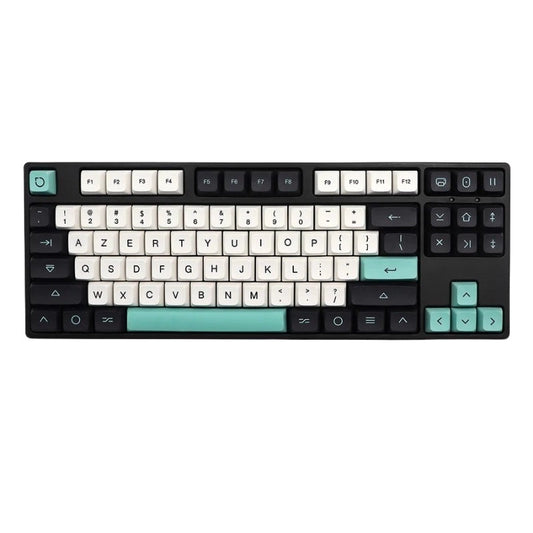
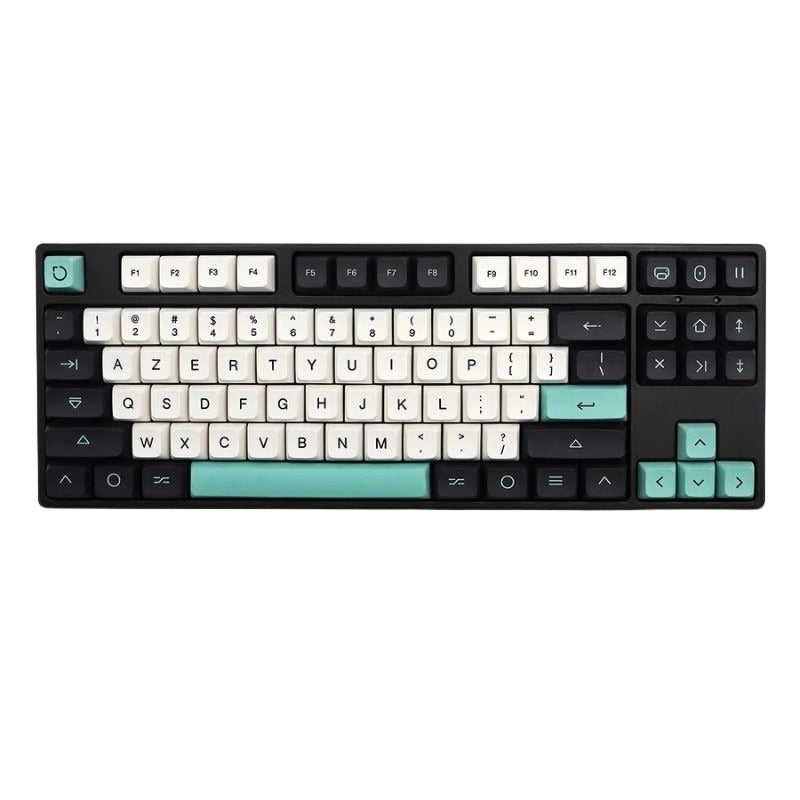
Typing French quotation marks properly is 50% a question of method, 50% a question of tool. If you write every day, a custom mechanical keyboard with QMK or VIA firmware solves the problem at the root: you assign "and" to two free keys, you add the non-breaking space on a third, and you forget Alt codes forever. Bonus, you can benefit from the same logic for em dashes, the curved apostrophe or capital accents which are also sorely lacking on AZERTY.
For more standard use with the AFNOR standard activated on the software side, a well-designed AZERTY keyboard (solid AltGr key, correct FR layout) does the job without investing in remapping.The important thing is to choose a keyboard that allows you to write quickly and cleanly, not to force yourself to remember three different combinations depending on the machine you are typing on.
Once the right shortcut is integrated or the right keyboard is configured, French quotation marks become automatic. Never again a straight " " in your rendering, never again a forgotten non-breaking space, never again this detail which betrays a botched text.