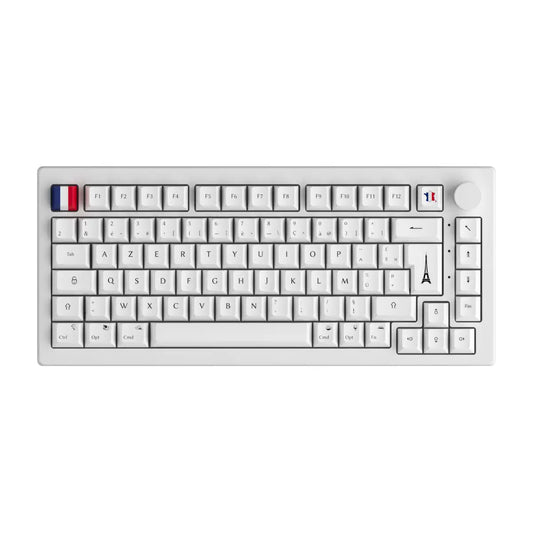
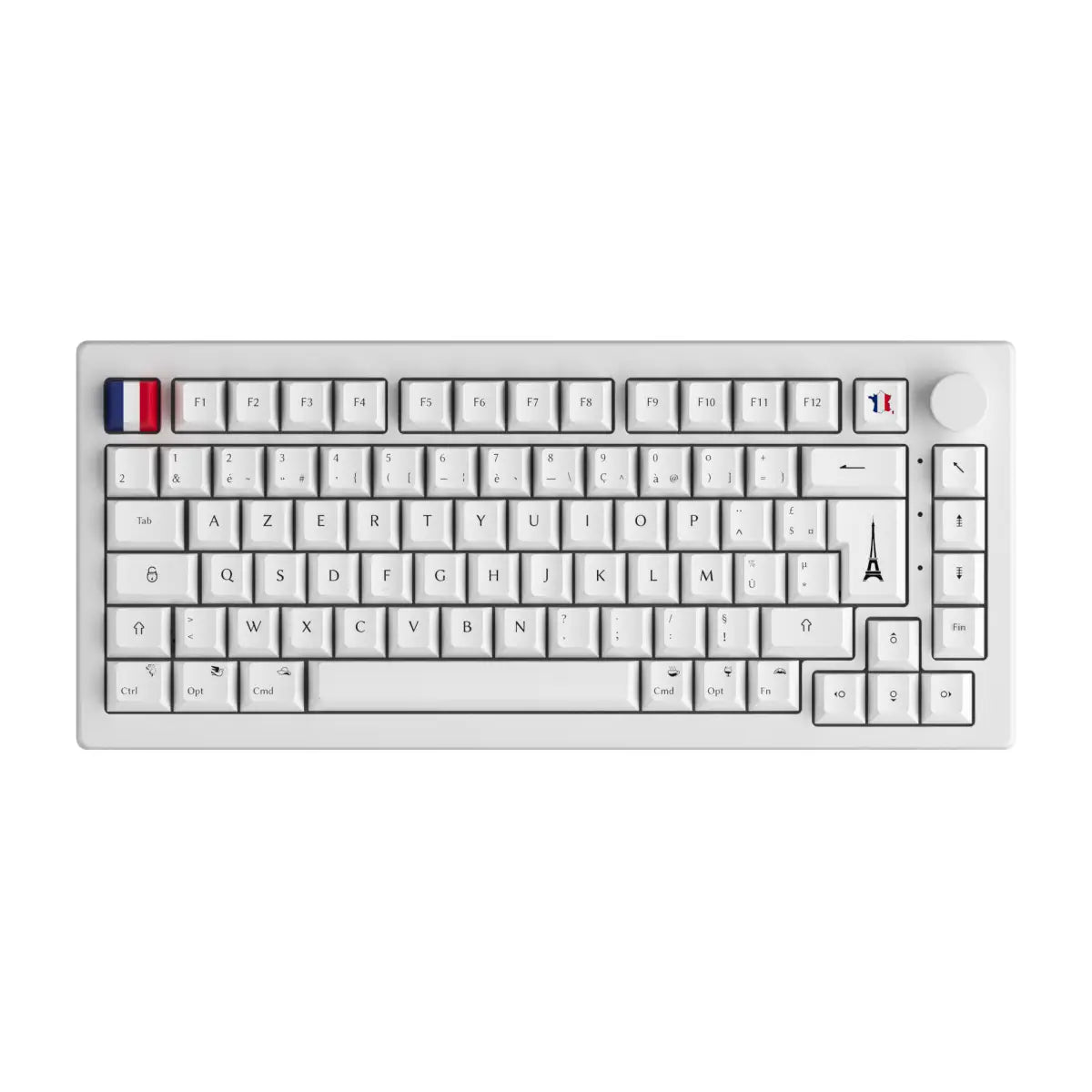
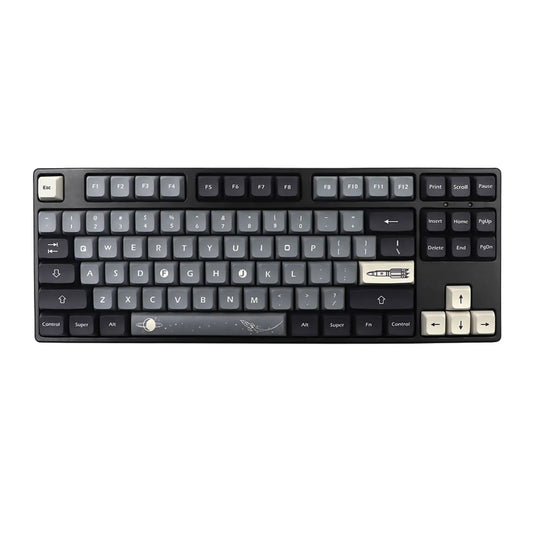
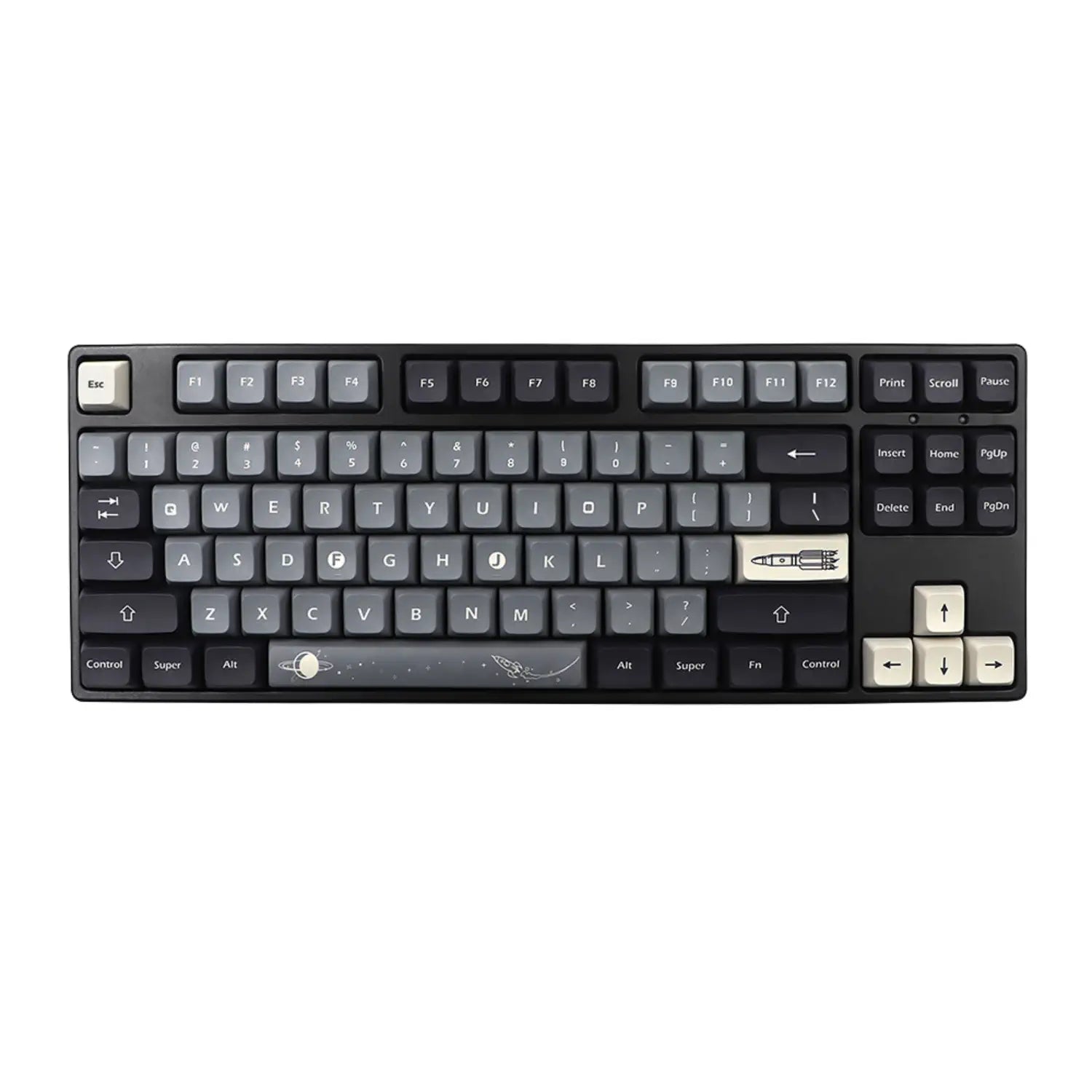

The dollar sign ($) is not in the same place depending on the type of keyboard you are using. On a French AZERTY, it has its own dedicated key, which often surprises users used to American QWERTY, where it is on Shift+4. This guide covers the three most common cases (AZERTY, QWERTY, Mac) as well as alternative methods for keyboards without the physical key.
The essential things to remember
- On AZERTY Windows: the $ sign has a dedicated key, without the need for Shift.
- On QWERTY US: shortcut Shift + 4.
- On Mac: depending on the layout, Alt + Shift + $ or direct key.
- Universal ASCII code: Alt + 0036 (Windows numeric keypad only).
- On programmable mechanical keyboard: you can remap $ to any key via QMK or VIA.
Dollar sign: the shortcut according to your keyboard
| Layout | Shortcut | Note |
|---|---|---|
| AZERTY Windows | Direct $ key (without Shift) | Dedicated key between ù and Enter on most models |
| QWERTY US | Shift + 4 | Standard on English keyboards |
| Mac AZERTY | Direct $ key or Alt + Shift + $ | Varies depending on Apple model |
| Mac QWERTY | Shift + 4 | Same as Windows QWERTY |
| Universal (Windows) | Alt + 0036 | Requires numeric keypad |
On a standard AZERTY keyboard, the dollar sign is directly accessible without a key combination. This is an advantage often overlooked by users who want to type it like a QWERTY.
Dollar sign on Windows AZERTY keyboard
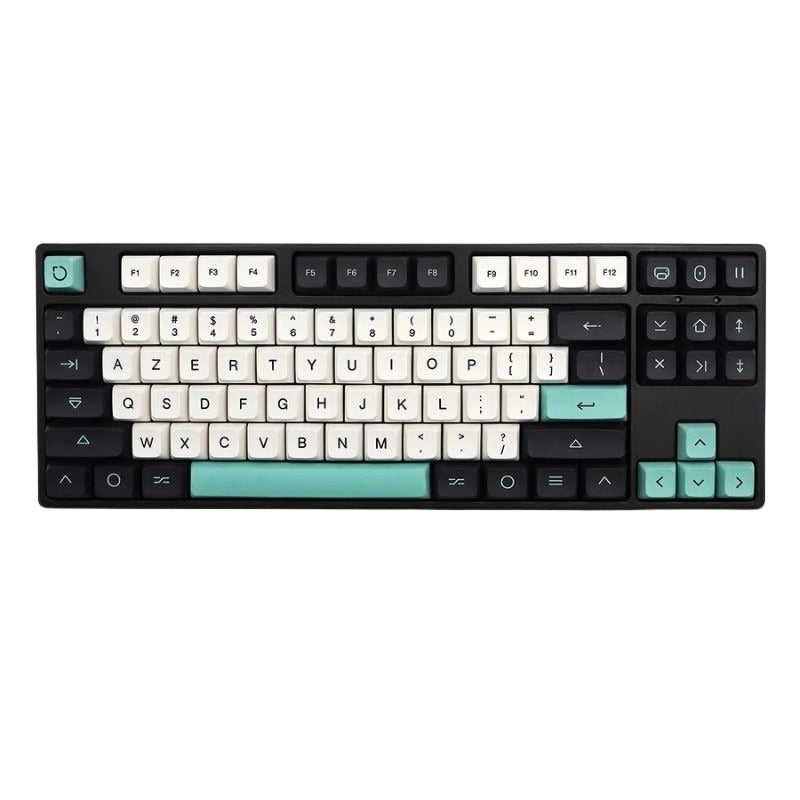
The nice surprise of the French AZERTY keyboard: the $ sign has a dedicated physical key. It is generally located to the right of the "ù" key, below the "Enter" key, depending on the model. You don't need to press Shift or AltGr: a simple press is enough.
This is the reverse of the American QWERTY keyboard, where the dollar is on Shift+4 and the "4" key gives the number 4 without a modifier. This asymmetry between layouts explains a lot of confusion when switching from one keyboard to another or when working on a foreign computer.
If your AZERTY keyboard does not display a $ key, two solutions: check the layout configured in the Windows settings (Settings > Language > Keyboard), or use the shortcut Alt + 0036 (entry on the numeric keypad, with the numeric lock activated).
Dollar sign on QWERTY keyboard
On an American or international QWERTY keyboard, the shortcut is simple and universal: Shift + 4. The top row of numbers corresponds to symbols with Shift: Shift+1 = !, Shift+2 = @, Shift+3 = #, Shift+4 = $.
Developers who frequently work with variables ($variable in PHP or Bash, $() in shell scripting) often appreciate QWERTY for this reason: the $ is accessible with a single modifier, unlike some European layouts where it requires a less intuitive combination. For technical profiles, this point can weigh in the choice of a keyboard.
Dollar sign on Mac
On Mac, the location of the $ sign depends on the layout configured in system preferences.
With a Mac AZERTY, behavior varies depending on the Apple keyboard model: on some Apple Magic Keyboard AZERTY, the $ key is directly accessible (like on a Windows AZERTY). On other configurations, the combination is Alt (Option) + Shift + the $ key.
With a Mac QWERTY (US setting), the shortcut is Shift + 4, identical to Windows QWERTY.
To check your configuration, open the Keyboard Viewerer (Symbols menu > Show keyboard viewer): it displays in real time the symbols available on each key according to the active modifier.
ASCII code and alternative methods
The ASCII code for the dollar sign is 36 (decimal) or 0x24 (hexadecimal). On Windows, you can enter it via Alt + 0036 by holding Alt and typing 0036 on the number pad (num lock on). On some code editors, you can also directly paste the Unicode character U+0024.
The dollar sign on a keyboard without a numeric keypad
Users of 60% and 65% keyboards do not have a physical numeric keypad, making the Alt+0036 method inaccessible without an Fn layer. Several solutions exist:
- AutoHotkey (Windows): You can create a script that maps a key combination of your choice to the $ sign.
- Karabiner-Elements (Mac): the equivalent for macOS, which allows you to redefine any key or combination.
- Fn layer on programmable keyboard: mechanical keyboards with QMK or VIA firmware integrate a virtual numeric keypad accessible via an Fn layer, including $ via Fn + Shift + 4.
Remap the $ sign on a mechanical keyboard
Programmable mechanical keyboards offer an elegant solution to the problem of missing or misplaced keys: remapping via firmware. The open-source firmware QMK and VIA allow you to redefine the behavior of each key, including assigning the $ to a physical position of your choice.
The procedure with VIA is accessible even without programming: install the VIA interface (via.evove.top), connect your compatible keyboard, select the key to remap and choose "Shifted Symbols > $" from the menu. The modification is stored in the keyboard's internal memory, it remains active regardless of the computer.
This approach is of particular interest to developers and users of non-standard layouts who need the $ permanently without depending on the operating system. To explore QMK/VIA compatible models, our catalog of custom keyboards offers a selection of fully reprogrammable keyboards.