
Typing an uppercase accent on Windows is not intuitive. The É key simply doesn't exist on the standard AZERTY keyboard, and most people don't know that there are several ways to get around it. Here are all the methods, ranked from the fastest to the most complete.
The essential things to remember
- Windows with numeric keypad: Alt + 144 (hold Alt, type 144 on numeric keypad, release)
- Windows without numeric keypad: Ctrl + ' (apostrophe) then Shift + E
- Mac: Caps Lock on + é key, or Option + E then Shift + E
- Smartphone: hold down the capital E to see accented variants
- All capital accents in the table below: É, È, À, Ç, Î, Ù, Ô, Œ
The quick shortcut for typing capital É on Windows
On Windows with a standard AZERTY keyboard, you have two main methods:
Method 1: ASCII code (with numeric keypad)
- Hold down the Alt key
- Type 144 on the number pad (not the top numbers on the keyboard)
- Release Alt
You get É. If you want È, the code is Alt+200. For To, it's Alt+183.
Method 2: Two-step shortcut (without numeric keypad)
- Press Ctrl + ' (the apostrophe/acute accent key, to the right of 4 on AZERTY)
- Type Shift + E
This method works in most applications: Word, LibreOffice, browsers, Notepad.
Method 3: Windows Character Map
Search for “Charmap” in the Start menu (or type charmap in the search bar), select É, click Select then Copy. Practical for occasional use, but too slow on a daily basis.
Type capital E without numeric keypad (laptops, TKL, 60%)
This is where it gets complicated. If you are working on a laptop, a TKL keyboard or a 60%/65% format without a built-in numeric keypad, Alt+144 does not work.
Here are the alternatives that really work:
- Fn + emulated number pad: On some laptops, an Fn combination activates a virtual number pad on the J/K/L/U/I/O keys. Check if the numbers are printed on these keys in small characters.
- Two-stroke shortcut (Ctrl + ' then Shift + E): works regardless of keyboard format
- Word only: Ctrl + Shift + &, then E
- Copy and paste from this guide: É È À Ç Î Ù Ô Œ (copy what you need)
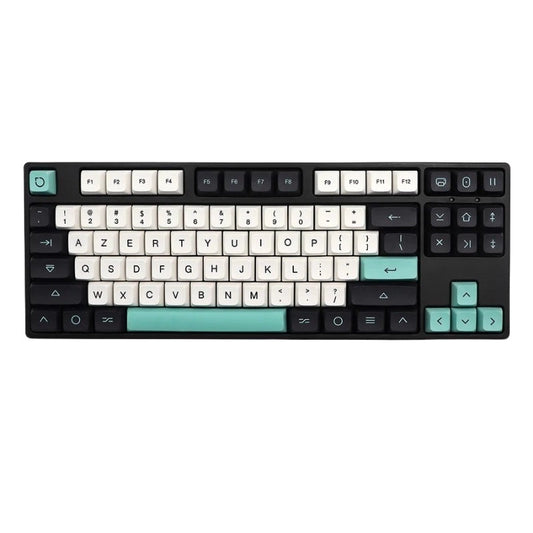
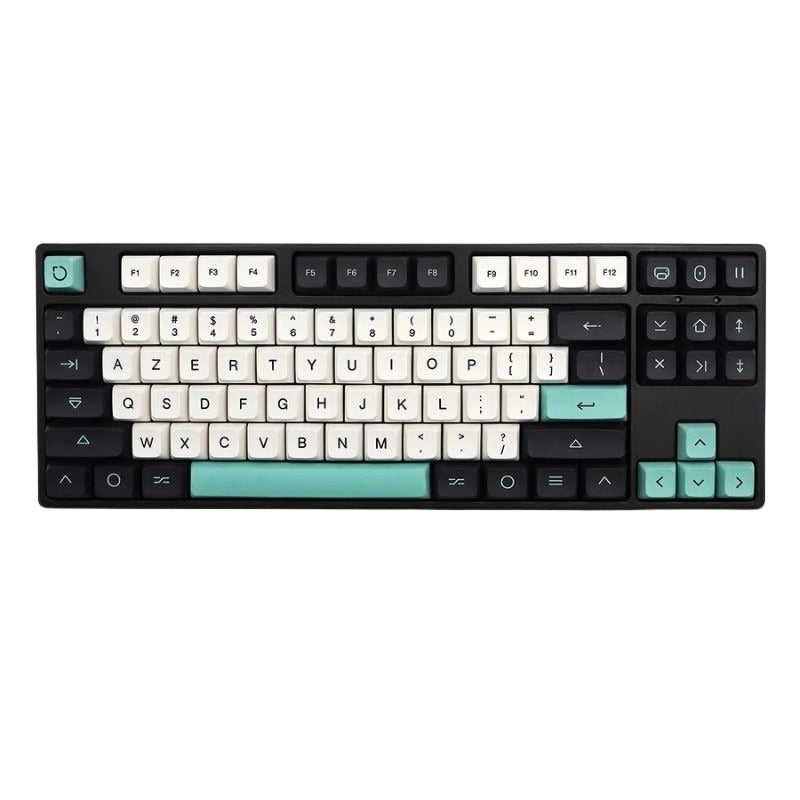
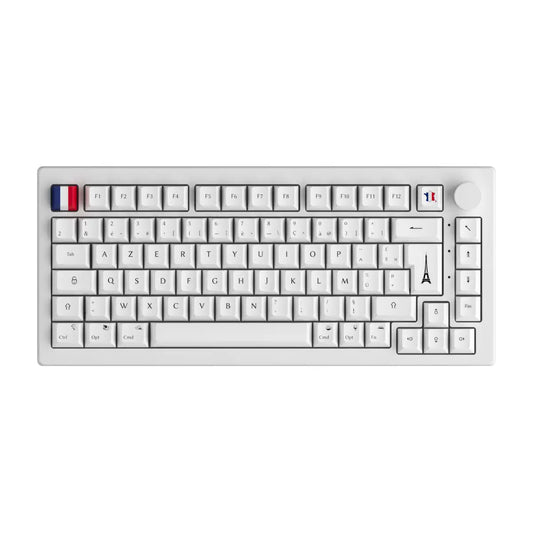
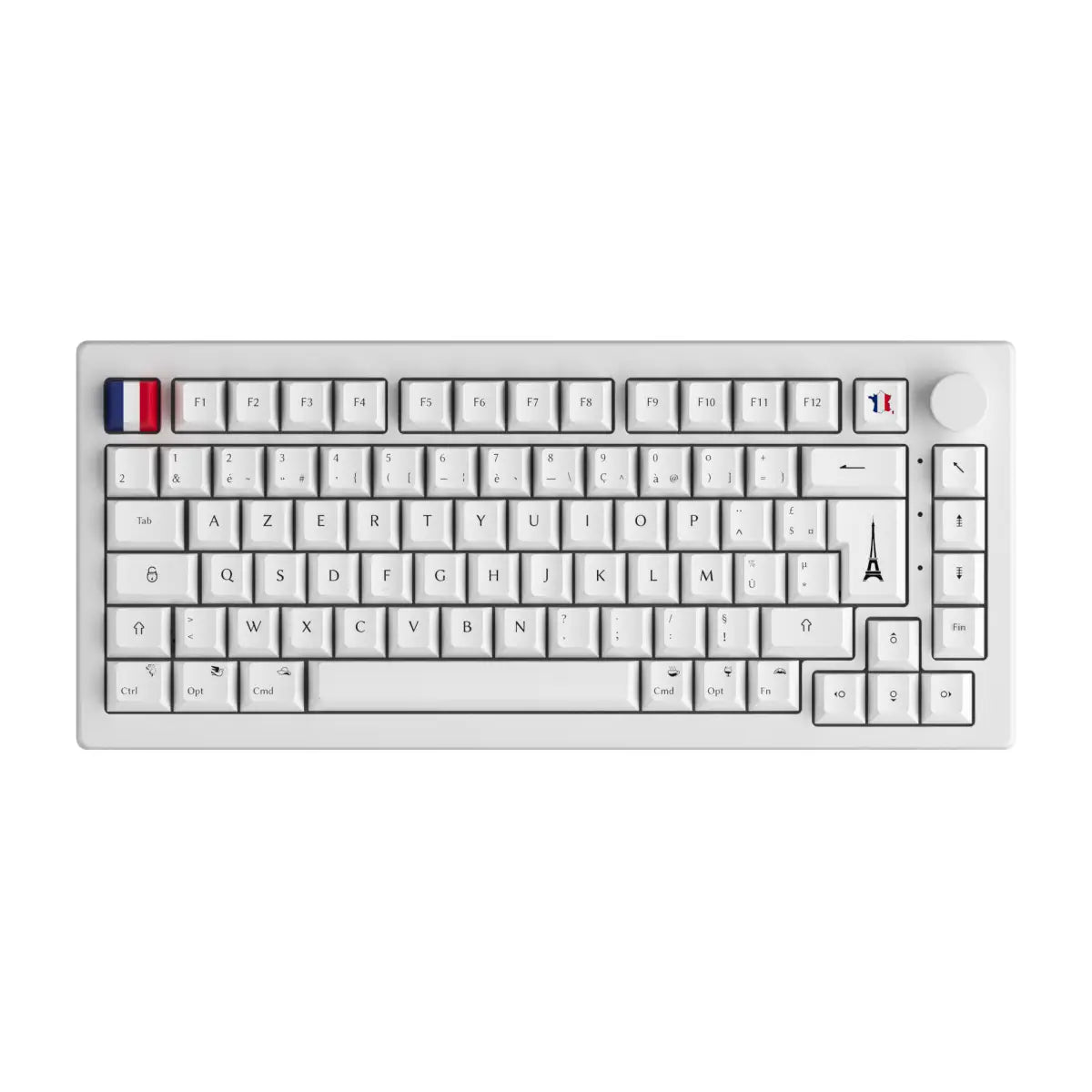
On a custom mechanical keyboard with AZERTY keycaps and ISO FR layout, you can also reprogram a dedicated key via the QMK/VIA firmware. This is the radical solution for those who type a lot of French.
All capital accents in one table (É, È, À, Ç, Î...)
| Character | Name | Alt code (num keypad) | Two-stroke shortcut | Mac (Caps Lock) |
|---|---|---|---|---|
| É | E capital acute accent | Alt + 144 | Ctrl + ' then Shift+E | Caps Lock + é |
| È | E capital grave accent | Alt + 200 | Ctrl + ` then Shift+E | Caps Lock + è |
| Ê | E capital circumflex accent | Alt + 202 | Ctrl + ^ then Shift+E | Caps Lock + ê |
| To | A capital grave accent | Alt + 183 | Ctrl + ` then Shift+A | Caps Lock + to |
| Â | A capital circumflex accent | Alt + 194 | Ctrl + ^ then Shift+A | Caps Lock + â |
| Ç | Capital cedilla C | Alt + 128 | Ctrl + , then Shift+C | Caps Lock + ç |
| Î | I capital circumflex accent | Alt + 206 | Ctrl + ^ then Shift+I | Caps Lock + î |
| O | O capital circumflex accent | Alt + 212 | Ctrl + ^ then Shift+O | Caps Lock + ô |
| Ù | U capital grave accent | Alt + 217 | Ctrl + ` then Shift+U | Caps Lock + ù |
| Π| OE capital ligature | Alt + 0140 | Ctrl + Shift + & then O | Option + Q (uppercase) |
On Mac and smartphone: the native method
Mac: Apple solved the problem much more simply. Two methods:
- Caps Lock on + accented key: activates Caps Lock, then press é, è, à, ç. You directly obtain É, È, À, Ç. That's all.
- Option + E then Shift + E: for the acute accent, Option + E places the accent, then Shift + E gives the É.
iPhone / iPad: keep your finger pressed on the capital E (keyboard in capital letters). A context menu appears with É, È, Ê, Ë. Swipe to the desired letter.
Android: same principle. Long press on active E + Shift to see accented variants.
Why Windows AZERTY does not handle uppercase accents natively
The short answer: it's a design choice inherited from mechanical typewriters of the 1950s-1980s, and Microsoft never fixed it.
In 2019, AFNOR (French Association for Standardization) published the NF Z71-300 standard, a new redesigned AZERTY which integrated capital accents on direct keys. This standard would have solved the problem once and for all. But 6 years later, it has not been adopted by Windows or by mainstream keyboard manufacturers. The project is at a standstill.
What is particularly frustrating: more than 60% of keyboards sold in France in 2024 are compact formats (TKL, 75%, 65%, 60%) without a numeric keypad. In other words, the "official" Alt+144 method is inaccessible for the majority of current users.
Mechanical keyboard enthusiasts have found a real solution: mechanical keyboards with reprogrammable firmware (QMK/VIA) allow you to assign any character to any key. With adapted ISO FR keycaps and a personalized AZERTY layout, you can have É, È, À, Ç directly accessible without any code. This is one of the concrete advantages of a custom keyboard over a large surface keyboard.
If you're looking to improve your office setup, our AZERTY keyboards include ISO FR compatible models with customizable firmware. The difference with a standard keyboard is that you stop being subject to the limitations of the layout and you start configuring it the way you want.