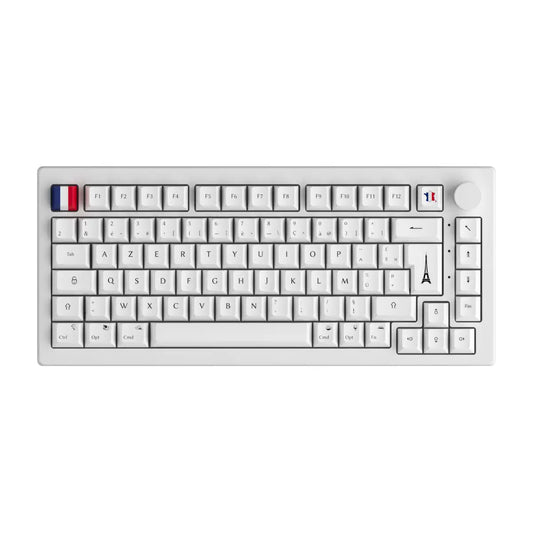
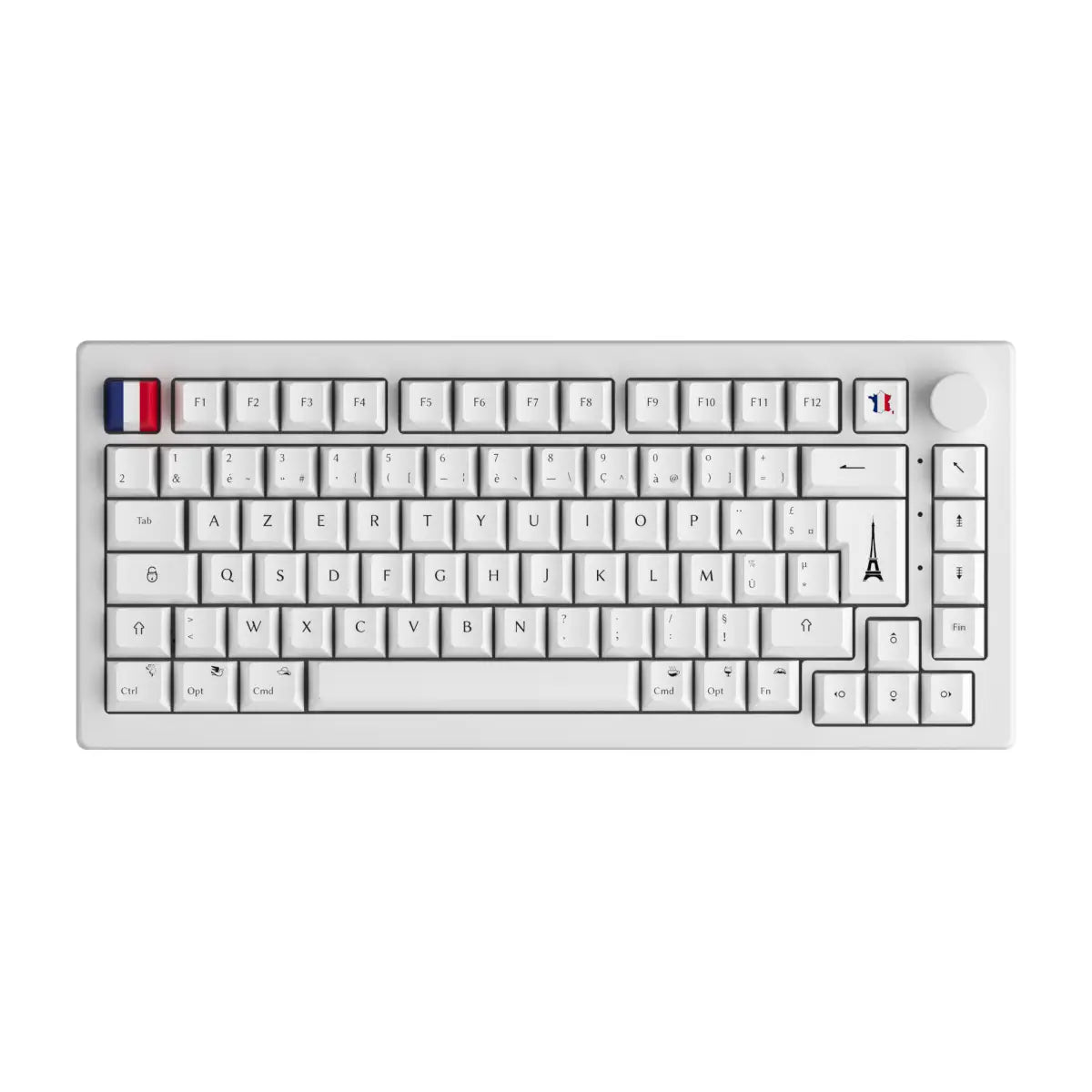
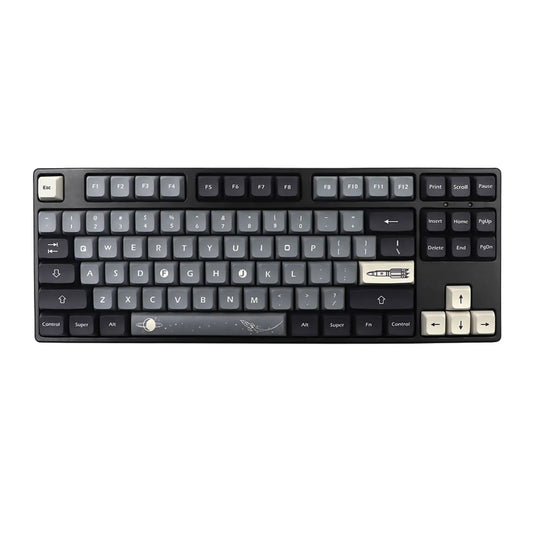
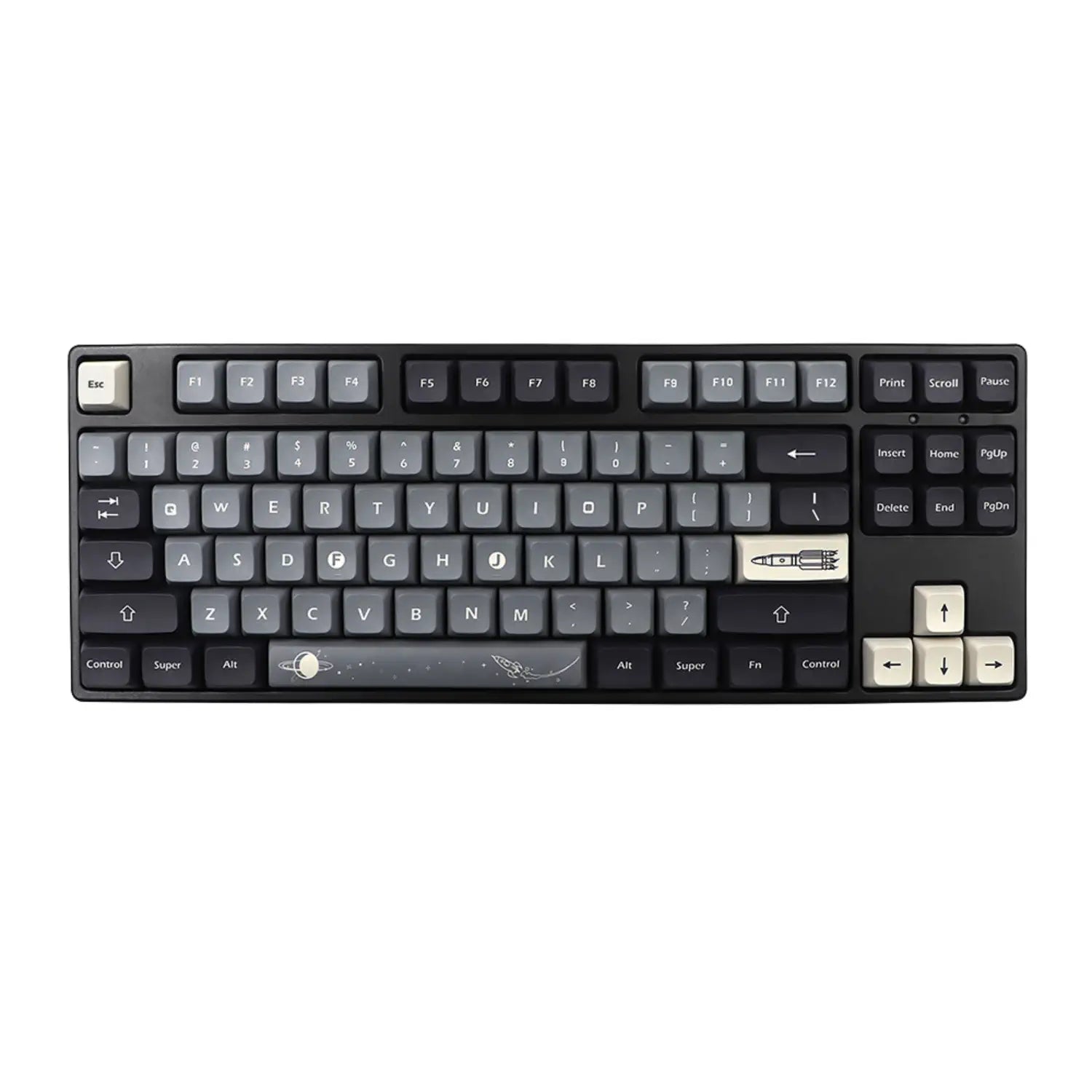

Type best coding keyboard into Google and you get eighteen English-language rankings that all talk about the same thing: the switch. Red, brown, blue, silent, right, have a nice day. The problem is that if your keyboard is not a US QWERTY, the question is settled two floors higher up, on a subject none of those articles mentions: the layout of your keys. Here is the real order of priorities, a verdict by size and by switch, and above all what you can gain without spending a penny.
The short version
If you code on a European layout, the order of priorities is the exact opposite of what the English-language search results tell you: layout first, size second, switch last. Four things to have in mind before you open a single product tab.
- The real handicap is not the keyboard, it is the layout: on AZERTY the curly braces, square brackets, pipe and backslash all sit behind AltGr, and the digits sit behind Shift. On German QWERTZ and on most ISO layouts, the brackets are behind AltGr too.
- The 65% is the best trade-off for coding: it drops the number pad but keeps dedicated arrow keys, which you need constantly in a text editor.
- The switch does not set your speed. It sets your noise level, and that is the only criterion that really matters in an open-plan office.
- Three free remaps deliver more day-to-day comfort than a new keyboard: Caps Lock turned into Control, a symbol layer, and a dead key turned into a macro.
Coding is neither writing nor gaming: what actually changes on the keyboard
A developer does not have the same typing profile as a copywriter or a gamer, and it is that profile, not the hardware, that should drive the choice. Three differences shape everything else.
The first one is the density of non-alphabetic characters. An average line of code contains curly braces, square brackets, parentheses, a semicolon, sometimes an angle bracket, a tilde or a pipe. A page of prose contains almost none of them. Your keyboard was designed for the second use case.
The second one is the density of modifier shortcuts. Navigating a project means chaining Ctrl, Alt and Shift combinations, often three keys at once. How expensive your modifiers are to reach becomes a first-order ergonomic criterion, while it stays invisible for office work.
The third one is exposure time. Six to eight hours a day, the same movement, five days a week. Two millimetres of discomfort that go unnoticed in an hour turn into pain after a year.
Hence the shift in buying criteria. In gaming, you optimise latency and travel on a handful of keys. In coding, you optimise the cost of reaching a hundred different keys. That is a different question, and it calls for different answers than a mechanical keyboard picked off a gaming spec sheet.
The real subject: your layout, not your keyboard
On a standard AZERTY, the characters you use most in code are pushed behind AltGr, and the digits behind Shift. This is the absolute blind spot of the English-language corpus, which of course has no reason to care about it.
| Character | Access on AZERTY | Access on US QWERTY |
|---|---|---|
| Opening curly brace | AltGr + 4 | Shift + bracket |
| Closing curly brace | AltGr + = | Shift + bracket |
| Opening square bracket | AltGr + 5 | Dedicated key |
| Closing square bracket | AltGr + degree sign | Dedicated key |
| Pipe | AltGr + 6 | Shift + backslash |
| Backslash | AltGr + 8 | Dedicated key |
| At sign | AltGr + 0 | Shift + 2 |
| Hash | AltGr + 3 | Shift + 3 |
| Digits 0 to 9 | Shift + top row | Direct access |
The real cost is not the lost millisecond, whatever you may read elsewhere. It is postural. To type a curly brace, the left thumb holds AltGr while the right little finger goes hunting for a key on the top row: the hand leaves the home position and has to find its way back. Repeat that a few hundred times a day and you get a kind of fatigue you will blame on your keyboard when it actually comes from your layout. On QWERTZ the pattern is the same, just with AltGr and the 7, 8, 9 and 0 keys.
Two situations, two answers:
- You code alone, on your own machine. Nothing stops you from switching to US QWERTY, or to an alternative layout. The switch is pure software, free, and reversible in ten seconds. The step-by-step procedure is in our guide to changing a QWERTY keyboard to AZERTY, which works just as well in the other direction.
- You work on company hardware or in an international team. There the switch is often impossible, or socially expensive the moment a colleague sits down at your desk. The answer then runs through layers, covered further down.
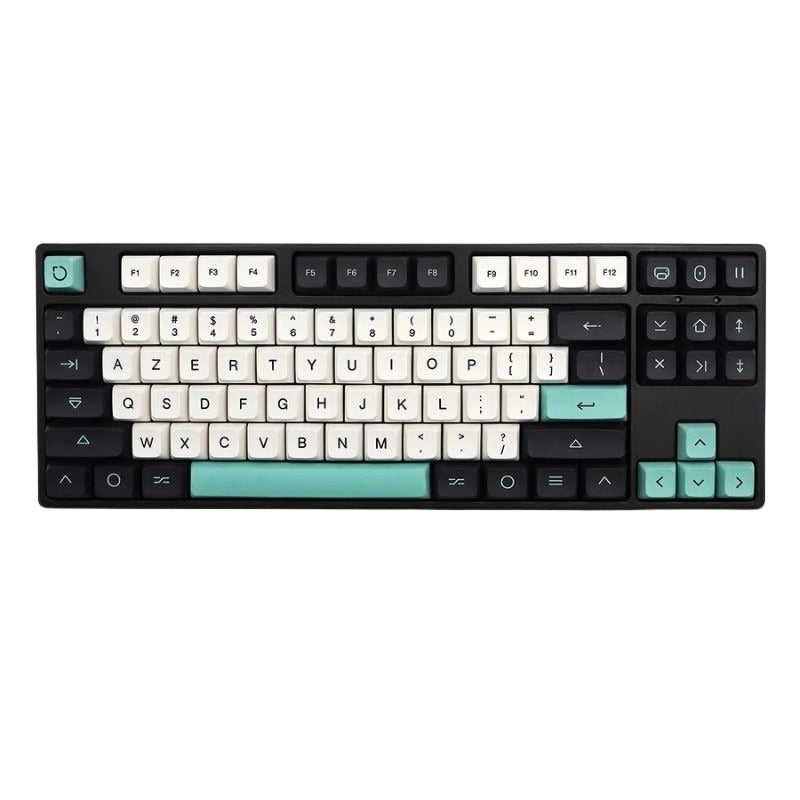
Just know that the choice exists, and that both physical standards are available: AZERTY keyboards and QWERTY keyboards. The hardware follows the decision, never the other way round.
bépo, improved AZERTY, Programmer Dvorak: three answers to the same problem
Three alternative layouts were designed to fix exactly this flaw, and two of them are national standards in France. Nobody mentions them in the English-language guides, which makes sense, and nobody mentions them in the French ones either, which makes a lot less sense.
| Layout | Principle | What it changes for code | Who it suits |
|---|---|---|---|
| Improved AZERTY | Letters and digits untouched, symbols and accented characters moved | Curly braces, square brackets and the at sign leave the acrobatic combinations behind | Anyone who refuses to relearn how to type |
| bépo | Layout redesigned from scratch for French, standardised by AFNOR | Symbols in direct access on the top row, pairs of delimiters side by side | Anyone who writes as much prose as code |
| Programmer Dvorak | Dvorak with the top row reorganised around the symbols used in code | Parentheses, square brackets, curly braces and ampersand in direct access | Anyone who codes in English and accepts relearning everything |
Here is the detail worth pausing on. bépo and Programmer Dvorak were designed separately, two decades and an ocean apart, for two different languages, by people who had never met. They made exactly the same design decision: put the symbols in direct access on the top row and send the digits behind Shift.
Roland Kaufmann got there in the early 2000s by running a statistical analysis of source code in C, Java, Lisp and CSS. The bépo team got there through the ergonomics of written French, and its layout systematically places both halves of a delimiter pair next to each other. Two opposite methods, one identical conclusion: a keyboard designed for prose makes the developer pay for the characters they type most.
Both French layouts have been official since standard NF Z71-300, published by AFNOR in April 2019, which covers improved AZERTY and bépo alike. One detail explains why you have probably never come across one in a shop: it is a voluntary standard, no manufacturer is required to follow it. The layout itself installs in software, with no change of keyboard.
60%, 65%, 75%, TKL: which size for coding
The 65% is the best size for coding, because it is the most compact one that still keeps dedicated arrow keys. That is the short answer to the question that keeps coming back in searches around best coding keyboard.
| Size | Dedicated arrows | Function row | Verdict for code |
|---|---|---|---|
| 60% | No, on the Fn layer | No, on the Fn layer | Best avoided, unless you already live in shortcuts |
| 65% | Yes | No, on the Fn layer | The best trade-off |
| 75% | Yes | Yes, compressed | Excellent if you use F2, F5 and F12 |
| TKL (80%) | Yes | Yes, standard | Comfortable, but bulkier |
| Full size | Yes | Yes | Only if you enter numbers in volume |
The real argument for the 65% and the TKL is not desk clutter, it is the distance to the mouse. Dropping the number pad brings your right hand about 8 cm closer, and what benefits from it is not the wrist but the shoulder, which stops sitting in abduction all day long. Over eight hours, you feel the difference.
Two honest caveats, because the verdict is not universal:
- If your job involves genuine number entry, financial data, accounting, spreadsheets all day long, keep your number pad. No postural gain makes up for the loss in throughput.
- If you live in your IDE function keys, F2 to rename, F5 to restart, F12 to go to definition, the 60% and the 65% will force a permanent Fn on you. The 75% exists for exactly this case.
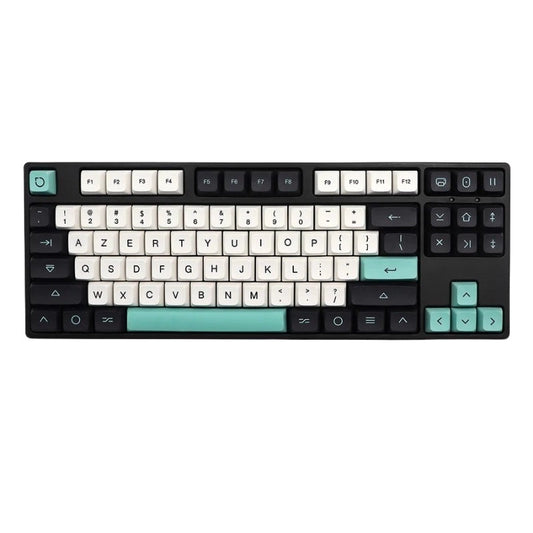
Place yourself on the scale: 60% keyboard, 75% keyboard, TKL keyboard and full size keyboard.
Switches: noise is the only criterion that will change your mind
The switch type does not set your typing speed, it sets your noise level and how the board feels. This is the most widespread myth on the subject, and the easiest one to take apart.
| Family | Feel | Noise level | Recommended setting |
|---|---|---|---|
| Linear | Smooth travel, no obstacle | Discreet | Shared office, fast typing |
| Tactile | Noticeable bump at actuation | Moderate | The default choice for coding |
| Clicky | Bump plus an audible mechanical click | Loud | Private office only |
| Silent | Linear or tactile with dampening | Very discreet | Open-plan office, video calls, coworking |
The actual numbers, since they are rarely quoted properly. A linear Cherry MX Red actuates at around 45 cN, at 2.0 mm of travel out of 4.0 mm total. A tactile MX Brown adds a bump at the same actuation point, with the same travel. The difference between the two is therefore purely sensory: nothing in those numbers will make you type faster.
The verdict in this section is the only non-negotiable point in the whole article: in an open-plan office, clicky is a social problem, not a technical one. You will not be judged on your code but on the noise you make writing it. If you share a desk, a silent switch is not a comfort, it is a condition.
One last case, common among developers coming from a laptop: low profile, with around 3 mm of total travel instead of 4. The transition from a laptop keyboard is far gentler than with a standard profile. Have a look at the switches available, and keep in mind that a good membrane keyboard is still a valid option if budget comes first.
What you can gain without buying anything
Before you order anything at all, three free settings will do more for your daily comfort than most hardware changes. If you keep only one section of this article, make it this one.
- Remap Caps Lock to Control. The most useless key on the board occupies the best available spot for your left little finger, right next to the home row. This is not a quirk: the HHKB, a keyboard designed for Unix programmers, has put Control in that position since its first Professional version in 2003, precisely so that the little finger reaches the modifier without the hand moving. Nothing stops you from reproducing that decision on the keyboard you own today.
- Build a symbol layer. A held Fn or AltGr key that brings curly braces, square brackets and parentheses under the home row removes the entire problem described above in one go, without changing the system layout and without your colleagues noticing a thing when they borrow your desk.
- Recycle a dead key into a macro. Num Lock, Scroll Lock, Print Screen: those keys do nothing in your working day. They can fire a build, open a terminal or drop in a code snippet.
What works with no special hardware: the native system layer, AutoHotkey on Windows, Karabiner on macOS, remapping rules on Linux. All of it runs on the keyboard you already have.
What does require a compatible board: remapping stored in the keyboard itself, through QMK or VIA. The benefit is real, your configuration follows you from machine to machine with nothing to install. Our guide to VIA explains how to get started, and most models in the custom keyboard collection are compatible.
Keycaps: the detail you notice six months in
A developer hits the same keys over and over, and that is exactly where cheap keycaps give up first. Three things to check, none of them cosmetic.
- The material. ABS keycaps turn shiny and slippery on the most-used keys, and on a developer board that means the navigation keys and the modifiers. PBT holds up far better against that shine.
- The legend. Shine-through only pays off if you genuinely type in the dark. In a lit office it adds nothing, and it is sometimes paid for with a laser-etched legend that wears off faster than a double-shot one.
- Compatibility. An ANSI set does not cover an ISO FR keyboard: the Enter key and the left Shift key have neither the same shape nor the same width. Check your keyboard standard before ordering, it is the most common buying mistake on this kind of product.
Depending on your case: PBT keycaps, AZERTY ISO FR keycaps, custom keycaps, QWERTY keycaps.
Checklist: choosing your coding keyboard in 7 points
Here are the seven checks to run, in order, and the first one governs all the others.
- Check whether the layout can be changed on your work machine before you buy anything. If it can, the hardware question becomes secondary.
- Settle the number pad question on the number entry you actually do, not on the idea you have of it.
- Insist on dedicated arrow keys if you spend your days in a text editor. They alone justify moving from 60% to 65%.
- Pick your switch on its noise level before its feel, especially in a shared office.
- Check for QMK or VIA compatibility if you plan to remap for the long run.
- Check the standard of the keycap set, ISO FR or ANSI, before ordering anything.
- Budget for a wrist rest if you type more than six hours a day. It is the one accessory whose benefit is measured in weeks.
If you would rather build the exact machine that matches those seven answers than live with a compromise, custom keyboard kits let you choose every part separately.
FAQ: keyboards and programming
Here are the six questions that come up most often when choosing a keyboard for development work.
Do you really need a mechanical keyboard to code? No, nothing requires it, and no serious study shows a speed gain. What a mechanical keyboard gives you is a keystroke that stays consistent over time, a feel you chose rather than one you put up with, and the option to replace a switch or a keycap set instead of binning the whole thing. Over six to eight hours a day, those three points count.
60% or 75% for programming? The 75% if you use your IDE function keys, the 65% in every other case. The 60% only makes sense if you are already comfortable with a permanent Fn layer, because it also removes the arrow keys, which few developers manage to give up.
Which silent keyboard for coding in an open-plan office? A model fitted with silent switches, linear or dampened tactile. Avoid anything labelled clicky or blue. Internal case dampening matters too: well-fitted foam kills more resonance than the switch itself.
What is the best best coding keyboard for Mac? Any mechanical keyboard works, with two caveats: check for a macOS mode or a switch that swaps Command and Option, and plan for keycaps with matching legends if the printing matters to you. Remapping through Karabiner covers the rest.
Should you move to QWERTY to program? Not necessarily. The gain on curly braces and square brackets is real, but it is paid for with a relearning phase and with permanent friction as soon as you write accented text. A symbol layer on your current layout delivers a good share of the benefit with none of those costs.
How long does it take to get used to a new size? Count a few days for a change of size alone, going from a full size to a 65% for instance, because your fingers find their bearings again quickly. Count several weeks for a change of layout, which rebuilds muscle memory from scratch. Never do both at the same time.